If you want to create your own workspace it's important to know how each element of the workspace can be customized.
For information on creating, selecting and deleting workspaces read Customizing the workspace.
Adjusting containers
Containers can be customized in several ways:
Changing container size
The simplest change to the layout you can make is to adjust the size and shape of the containers.
You can grab the edge of any container with the mouse and drag to resize it. For example, if you need a bigger viewer you can drag the bottom and left edges of the default view to enlarge it.
There are some limits on how much you can resize containers.
Moving containers
Entire containers can be moved by clicking and dragging on the title bar at the top of the container. Moving a container will also move all of its docked panels.
Make sure you click on an empty area of the title bar and not on a panel tab.
Containers can only be moved to defined locations, indicated by green lines as you drag. Dragging a container to the top, bottom, left or right of the screen will show a green line running the full width or height of that edge.
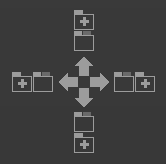
When you drag a container over another container the 4-way placement indicator will appear in the center. This is used to specify where the container should be moved in relation to the container that is already in place. Dragging the container onto one of the four edge indicators will highlight the drop area in green.
Floating containers
Containers can also be separated from the main window and moved into their own 'floating' windows. These can then be dragged anywhere around your desktop. This can be useful if you want to move the viewer onto a second monitor, for example.
To float a container, simply right click its title bar and select Float container.
Make sure you click on an empty area of the title bar and not on a panel tab.
Redocking containers
If you don't want a container to be floating anymore you can 'dock' it back into the main window. To do this simply click the >> icon in the floating container's top bar.
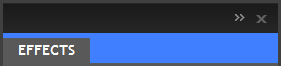
A newly docked container will always default to the far right edge of the Edit & Effects screen. You may need to move it to the desired position after docking.
You can also drag a floating panel back into the interface, choosing a specific location for it, as described below.
Adjusting panels
Individual panels can be customized inside containers, or moved between containers.
Moving panels
You can move individual panels, rather than entire containers. This can be done by dragging on the panel's tab at the top of its container.
Reordering panels
Panels can be reordered within a container.
For example, the default view has the Media and Controls panel in the same container, with the Media panel on the left. If you click and drag on the Media panel's tab you can move it to the right of the Controls panel.
Changing container
You can also drag panels from one container to another. This is done in the same away as reordering by selecting the panel and dragging it, except in this case you can drag it onto a different container title bar.
To change the panel's container you must drag it onto another container's title bar. Dragging it into the container itself will instead create a new container.
Creating new containers
As mentioned above, if you drag a panel onto another container the 4-way placement indicator will appear. If you select a location this way a new container will be created at the specified location containing the panel.
Floating panels
Panels can also be separated from the main window and moved into their own 'floating' container. These can then be dragged anywhere around your desktop. This can be useful if you want to move a panel onto a second monitor, for example.
To float a panel, simply right click its tab and select Float panel.
You can add additional panels to a floating container once it has been created.
Redocking panels
If you don't want a panel to be in a floating container anymore you can 'dock' it back into the main window. To do this simply drag the floating panel back onto a docked container.
RECAP The default layout will provide an efficient workflow, but advanced users may want to customize the Edit & Effects screen to better suit their needs.