The Color category contains the main color correction and grading effects.
Auto color, contrast & levels
These effects automatically adjust the layer's color, contrast or levels.
By default they update on each frame, which can cause fluctuations in the layer's appearance. By activating the Select frame property you can then manually choose a frame to use as the source for the automatic adjustment.
Brightness & contrast
Quick adjustment of the layer's brightness and contrast.
Color balance
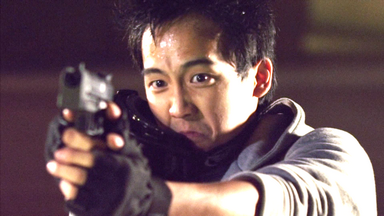
Individually adjust the balance of red, green and blue in the layer's shadows, midtones and highlights.
The Preserve luminosity property retains the layer's original brightness when altering the colors.
Color correction wheels
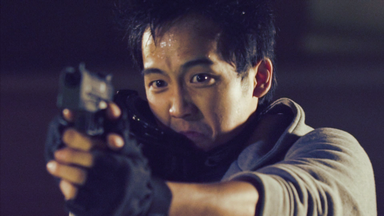
This effect provides a visual way to adjust the look of your layer.
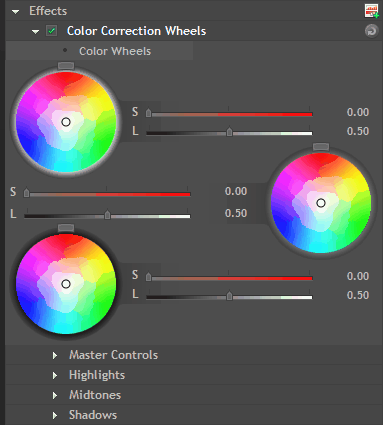
You can drag on the color wheels to adjust the color balance of highlights (top wheel), midtones (middle wheel) and shadows (bottom wheel). The further out from the center of the color wheel you drag the point, the more saturated the colors will become.
The sliders can be used to adjust the strength and lightness and lightness of the adjustment, and the rotator on the wheels changes the hue.
Additional, more standard controls are available below the color wheels.
Color space converter
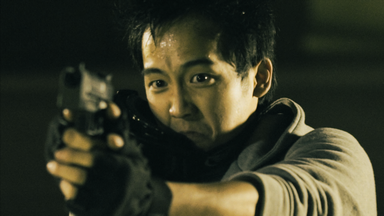
Changes the color space of the layer to a different color space.
Color temperature
Use to warm or cool your layer.
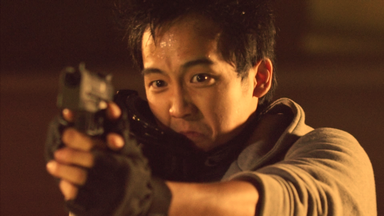
Crush blacks & whites
An alternative to simply altering the contrast, this enables you to change the black and white points separately for finer control.
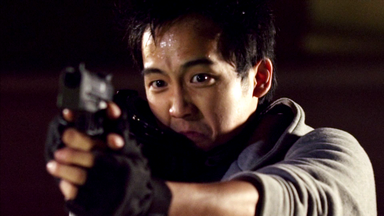
Exposure
Simulates the effect of letting more light into the camera lens.
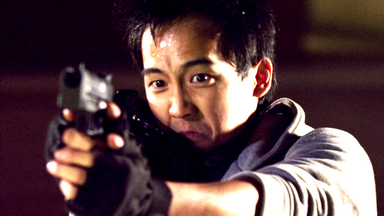
Gamma
Individually alter the gamma of red, green and blue channels.
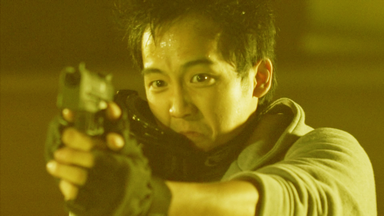
Hotspots
A quick and easy way to isolate the bright areas of your layer.
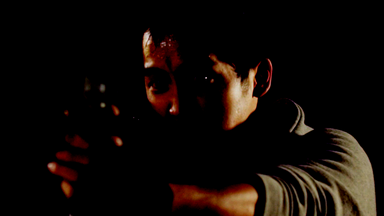
Hue colorize
Applies a new hue to the layer,.
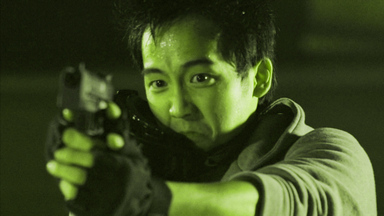
Hue shift
Moves the entire color spectrum of the layer through different hues.
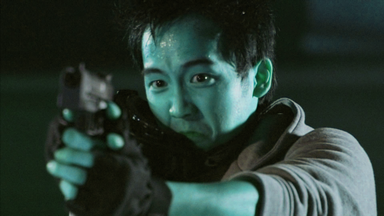
Hue, saturation & lightness
Control over the hue, saturation and lightness of each color channel.
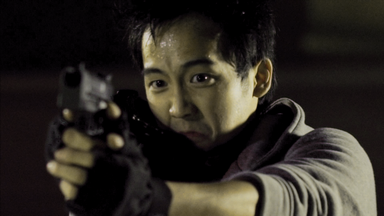
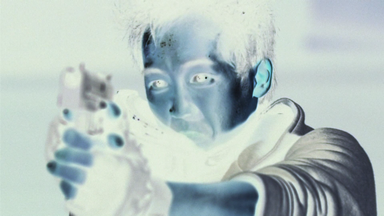
Invert
Inverts the colors.
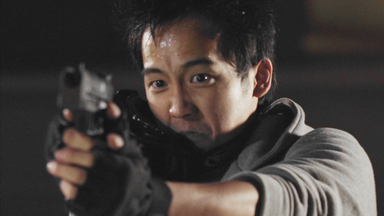
Leave color
Desaturates the layer except for the chosen color.
Levels histogram
Levels gives you detailed information about the channel composition of the layer. The graph tabs or the sliders can be used to constrain the layer.
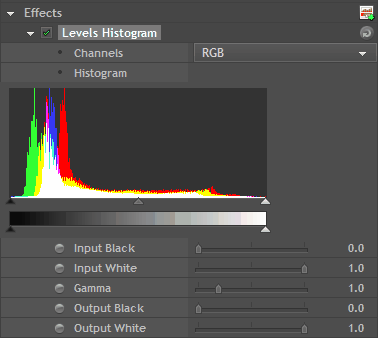
If you don't use a calibrated setup, using the levels graph can provide more accurate results than relying on your monitor.
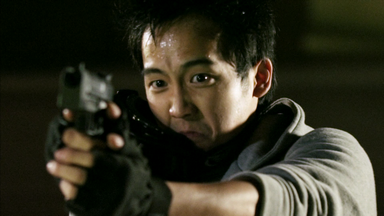
Shadows & highlights
If you layer is overbright or too dark, this effect can help to get better results.
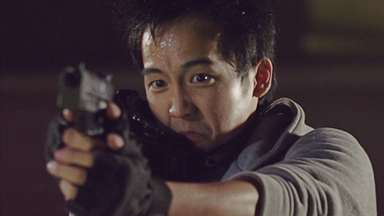
Vibrance
Adds punch to your image, sharpening it up and emphasizing edge detail.
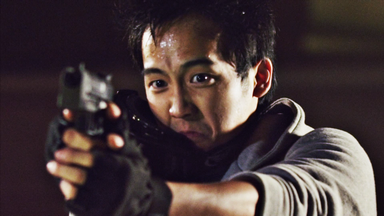
White balance
If your video was shot with incorrect white balance, this effect can help to correct the problem. Use the color pipette to select a part of the video that should be white and the layer will be corrected.